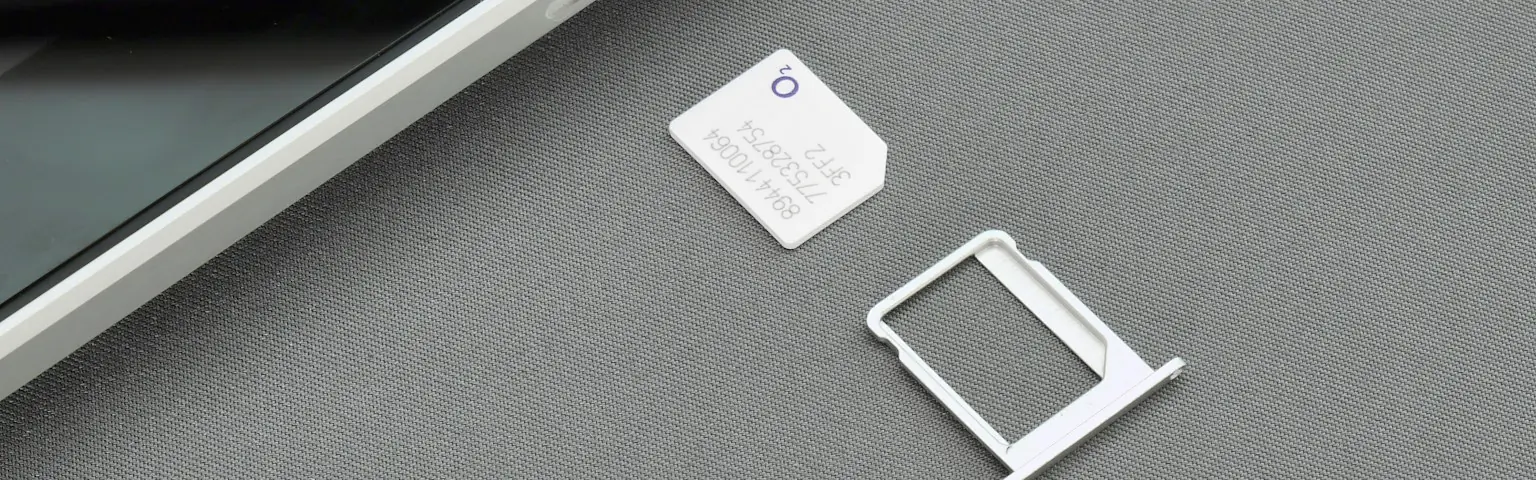


Learn how to use an eSIM on iPhone, including how to install, activate and use it, and how to switch eSIMs on your iPhone.
eSIMs are now commonplace in Vietnam — Viettel, VinaPhone and MobiFone all support them. If you use an iPhone and want to know how to install, activate, use or switch an eSIM, this guide walks you through every step, from activating your first eSIM to switching to a travel eSIM when you go abroad.
What is an eSIM on iPhone?
An eSIM on iPhone is a digital SIM that lets you activate a carrier's mobile plan without a physical SIM card. Simply put, an eSIM is an electronic chip built into your iPhone. Learn more: What is an eSIM?
Note that eSIM is only available on iPhone XS/XR and later. You can see the full, up-to-date list of eSIM-compatible devices here.
You can install 8 or more eSIMs on one iPhone and use 2 phone numbers at the same time.
Note:
- Most iPhone models sold in mainland China don't support eSIM (they use physical SIMs), but starting with the iPhone Air and iPhone 17e, Apple has begun offering eSIM in that market. In Hong Kong and Macau, some iPhone models support eSIM.
- If you're traveling to China and want to use a prepaid eSIM on your iPhone, buy a travel eSIM from a reputable provider — for example a China eSIM or the regional China, Hong Kong & Macau plan.
Should you use an eSIM on your iPhone?
Yes. An eSIM on iPhone is a great choice if you value convenience, want to use 2 phone numbers on one device (one on eSIM and one on a physical SIM), switch between carriers, or travel abroad often.
The one drawback is that moving an eSIM to another phone is more complicated than moving a physical SIM.
Requirements for activating an eSIM on iPhone
To use an eSIM on iPhone, you need to meet 2 requirements: an eSIM-compatible model (iPhone XS/XS Max/XR or later) and an eSIM subscription — for example from Viettel, VinaPhone or MobiFone (the 3 carriers that currently support eSIM in Vietnam), or a travel eSIM when you go abroad.
What do you need before installing an eSIM on iPhone?
Besides an eSIM-compatible phone, you'll need: a stable Internet connection (WiFi or 3G/4G/5G — though eSIM-only iPhone 14 and later models sold in the US don't require WiFi for activation), and activation details from your carrier (a QR code, or an SM-DP+ address plus activation code). For a travel eSIM, your phone must be carrier-unlocked first — here's how to check whether your phone is carrier-locked.
How to install an eSIM on iPhone
There are 2 ways to install an eSIM on iPhone:
- Scan a QR code (the quickest and easiest way), or
- Enter the activation code manually if you can't scan the code.
Here's how to install an eSIM on an iPhone for the first time:
- Open Settings on your phone > tap Cellular (or Mobile Data).
- Tap Add Cellular Plan (Add Mobile Data Plan) on iOS 15 or earlier, or Add eSIM on iOS 16 and later.
- Scan the QR code provided by your carrier with the camera — you'll need to display the QR code on another device or on a printout.
- If you can't scan it, tap Enter Details Manually > enter the SM-DP+ address and activation code.
How long does it take to install an eSIM on iPhone?
From start to finish, installing an eSIM on iPhone takes about 3–5 minutes.
On some iPhones running iOS 16, installation and activation can take 15–20 minutes.
How do you use an eSIM on iPhone after installing it?
Once your eSIM is installed, you can personalize 3 things: give your eSIM a label, choose the default line for mobile data, and set the default line for calls, messages, iMessage and FaceTime.
1. Label your eSIM
Labeling your eSIM helps you tell your eSIMs and SIMs apart and manage them when your phone has several lines.
- Go to Settings > Cellular (Mobile).
- Select the eSIM you just added > tap to rename the eSIM.
- Change the label and save it.
2. Choose the default line for mobile data (3G/4G)
If your iPhone has 2 lines (a physical SIM + an eSIM, or 2 eSIMs), you can set one line as the default for mobile data:
- Go to Settings > Cellular (Mobile) > Cellular Data.
- Select the number / SIM you want to use by default for Internet access.
3. Set the default line for calls, messages, iMessage and FaceTime
You can set a default number / line for calls, messages, iMessage, FaceTime and your Apple ID.
- Go to Settings > Cellular (Mobile).
- Select the SIM you want to use as the default line for each purpose > tap Continue.
How to activate an international travel eSIM on iPhone
A regular eSIM works as soon as you turn it on. With an international travel eSIM, you need to turn on the eSIM line, enable data roaming and select that eSIM for mobile data when you arrive in the destination country. See also our eSIM activation guide.
- Go to Settings > Cellular (Mobile) > select your travel eSIM > tap Turn On This Line.
- Turn on Data Roaming for that eSIM.
- Go back to Cellular > tap Cellular Data > select the matching travel eSIM.
- When you arrive in your destination country, the eSIM will automatically connect to a supported network.
If you still can't access the Internet after these steps, restart your phone.
If that doesn't work, you'll need to set up the APN (Access Point Name — the carrier's network access point, not Personal Hotspot) as follows:
- Go to Settings > Cellular (Mobile) > select the eSIM plan > tap Cellular Data Network.
- Enter the APN for the relevant carrier (get the APN details from your eSIM provider).
If you still can't get online, contact your eSIM provider for help. With a TouriESIM eSIM, you can contact our Vietnamese-speaking support team.
How to delete an eSIM on iPhone
Deleting an eSIM on iPhone takes just a few taps in Settings, but think carefully before you do — especially with an international travel eSIM, as many can only be installed once.
- Go to Settings > Cellular (Mobile).
- Select the eSIM you want to delete > tap Delete eSIM / Remove Cellular Plan.
Note: Only delete an international travel eSIM once it has expired or its data has run out, since many can only be installed once.
► See also our guide to installing an eSIM on iPhone and how to use an eSIM and your main SIM at the same time.
How do you switch eSIMs between carriers on iPhone?
You can switch to an eSIM from Viettel, VinaPhone or MobiFone. Each carrier has its own process and fee, and you can do it in store or through the carrier's app.
1. Switching to a Viettel eSIM on iPhone
There are 2 ways to switch to a Viettel eSIM on iPhone: in store or online via the My Viettel app.
Viettel charges 35,000 VND to switch to an eSIM (reference price, subject to change).
Switching at a Viettel Store
Bring your ID card and your current SIM to any Viettel store nationwide for assistance.
Switching via the My Viettel app
- Download the My Viettel app, go to Menu > select Utilities > select Change SIM > Change to eSIM.
- Confirm the eSIM fee and sign the contract.
- Enter your personal details and phone number to complete the switch.
2. Switching to a MobiFone eSIM on iPhone
As with Viettel, there are 2 ways to switch to a MobiFone eSIM on iPhone: in store or online via the MobiFone app.
Switching at a MobiFone store
As with Viettel, simply bring your original ID and your SIM to a MobiFone service center to register for or switch to an eSIM.
Switching via the My MobiFone app
- Open the My MobiFone app > select Change to eSIM > tap Agree.
- Receive an OTP on your phone number, then enter it and tap Confirm to switch your SIM.
- You'll receive a text from MobiFone confirming the switch. Restart your phone to activate the eSIM.
3. Switching to a Vinaphone eSIM on iPhone
There are 2 ways to switch to a VinaPhone eSIM on iPhone: online via the MyVNPT app or in person at a service center. The online fee is 25,000 VND (reference price, subject to change).
Switching online via the MyVNPT app
- Open the MyVNPT app > select Mobile subscription > Support tools > Register eSIM > Convert physical SIM to eSIM.
- Follow the on-screen instructions (face verification against your citizen ID card, fee payment, eSIM installation).
- Requirements: an active two-way subscription, an eSIM-compatible device, and no Apple Watch eSIM service on the line.
Switching at a VinaPhone service center
Bring your original ID card and the SIM you want to switch to a VinaPhone service center, and staff will help you.
With these steps, you can install, activate and switch eSIMs on your iPhone yourself, without visiting a store in most cases.
Frequently asked questions
Can I use 2 eSIMs at the same time on iPhone?
Yes, but only on iPhone models that support two active eSIMs at once (iPhone 13/SE 3rd generation and later). Older eSIM-capable models (XS–12) can only use 1 eSIM + 1 physical SIM at the same time.
If I lose my iPhone, can someone misuse my eSIM?
An eSIM is tied to the device and can't be removed like a regular SIM, but if you lose your phone you should still lock or erase the eSIM remotely via your carrier account or iCloud (Find My) to stay safe.
How do I move my eSIM to a new phone?
On newer iPhones running a recent version of iOS, you can use eSIM Quick Transfer between two phones signed in to the same Apple Account, if your carrier supports it. On older models, or if your carrier doesn't support it, contact your carrier to get a new QR code or activation code for your new phone.
Will I lose my phone number when switching from a physical SIM to an eSIM?
No. Switching to an eSIM only changes your SIM from physical to digital — your phone number, plan and data stay exactly the same.